MaxPlayer Is Now Available on Roku
MaxPlayer is now on Roku. You can add the official MaxPlayer channel straight from the Roku Channel Store and watch your IPTV playlist on any Roku device or Roku TV.
This is a bigger deal than it sounds. Roku is a closed platform with strict rules, and most IPTV players you know from other devices — including TiviMate and IPTV Smarters — simply aren't allowed in its Channel Store. MaxPlayer is one of the few IPTV players approved to run natively on Roku.
MaxPlayer is an IPTV player — it plays your own content. It does not include or sell channels, streams or subscriptions. You bring your IPTV playlist (M3U or Xtream Codes) and MaxPlayer plays it.
What this means for you
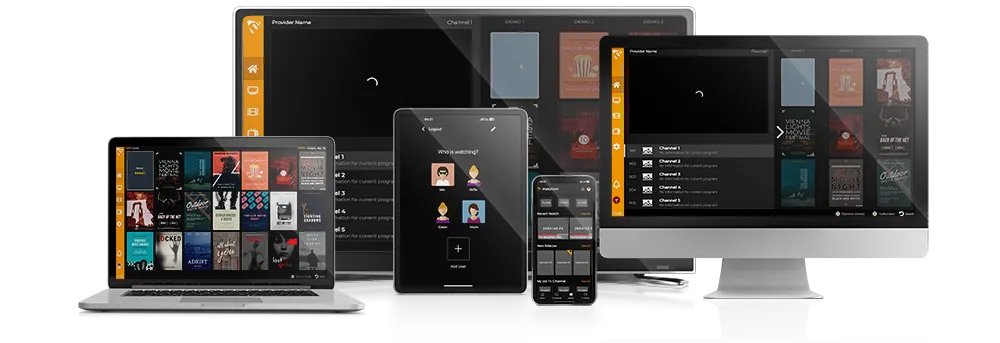
- One MaxPlayer account now covers Roku too — alongside Apple TV, Android TV, Fire TV, Samsung, LG, iOS, Windows and MAG. That's the widest platform reach of any IPTV player.
- Your playlists, favorites and settings stay in sync across every device, Roku included.
- No sideloading, no developer mode, no workarounds — it's an official channel.
How to add MaxPlayer to your Roku
- On your Roku: press Home, open Streaming Channels, then Channel Store, search MaxPlayer and select Add Channel.
- From the web: open the MaxPlayer channel on the Roku Store while signed in to your Roku account and click Add channel — it installs to your linked Roku automatically.
- From the Roku mobile app: open the app, go to Channels, then Channel Store, search MaxPlayer and Add.
Open the channel, register your account (a 7-day free trial is included), add your M3U or Xtream Codes playlist, and you're watching. For a full walkthrough, see our Roku setup guide.